Disc ripping
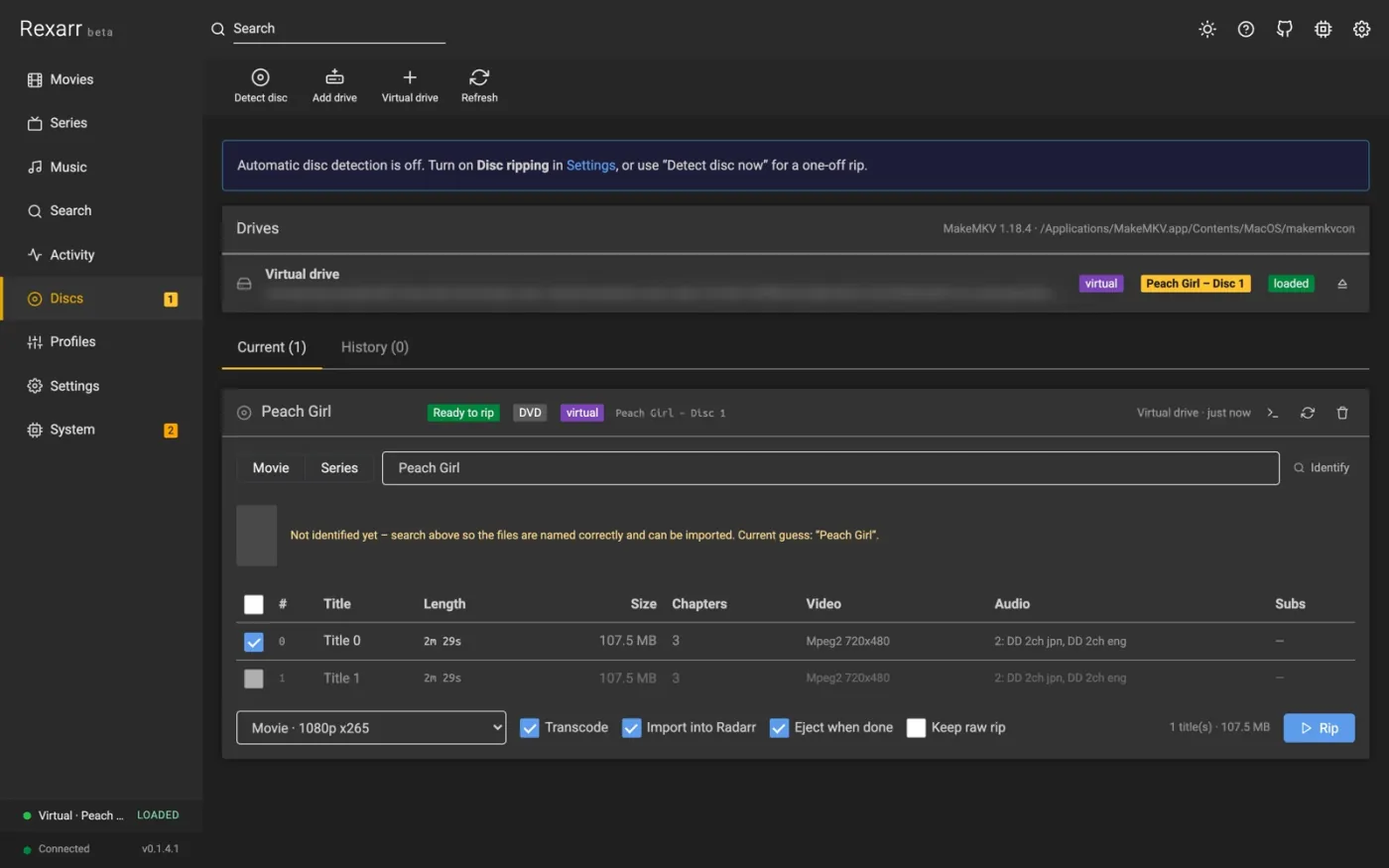
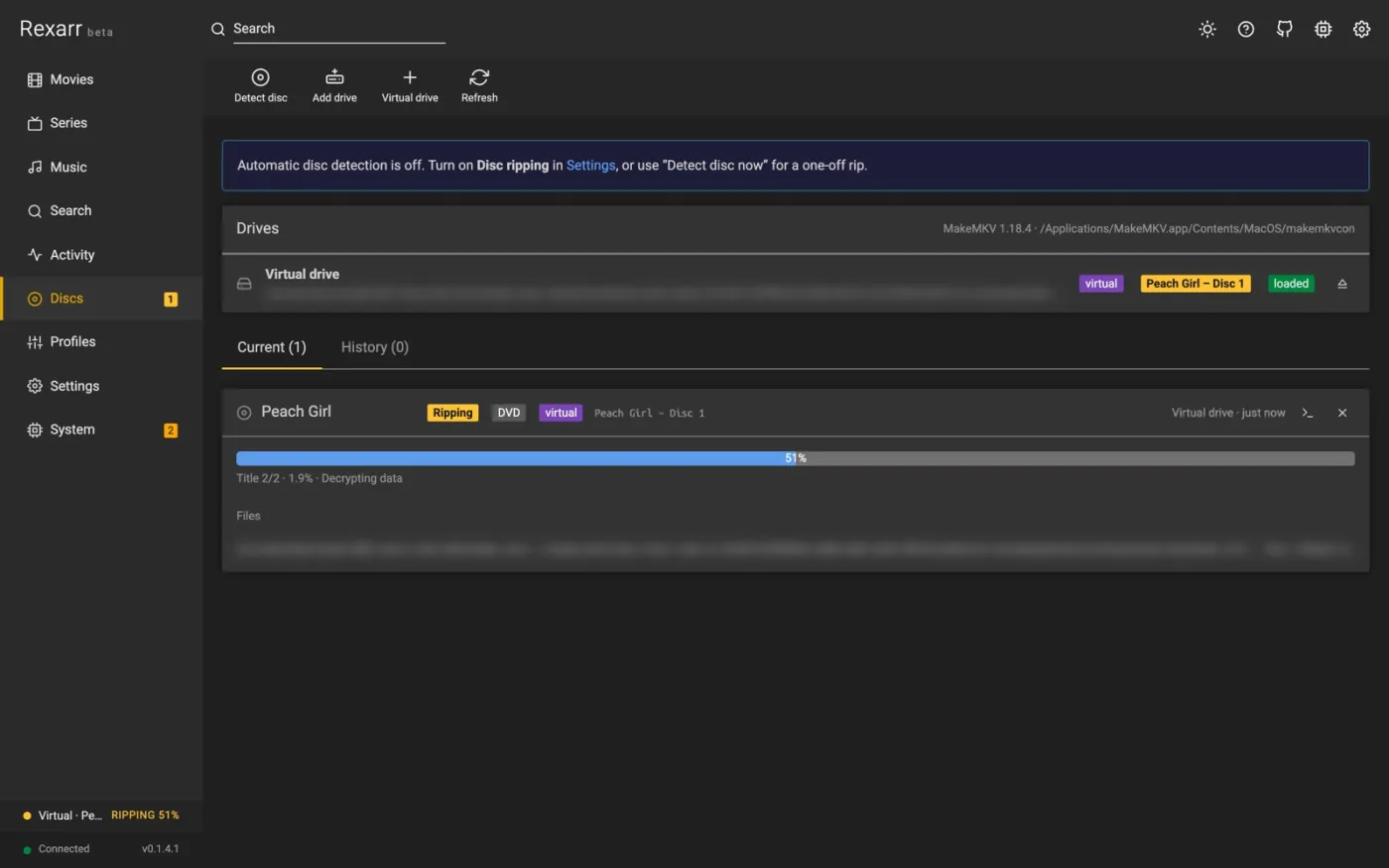
Rexarr behaves like an automatic ripping machine: insert a disc, it identifies it against your library, rips the titles you want with MakeMKV, encodes them with a profile, and hands the finished files to Radarr / Sonarr — checking that they really were imported. (How it compares to ARM itself.)
Settings → Disc ripping is on by default. It does nothing until a disc is inserted, and it needs
MakeMKV (makemkvcon); Rexarr auto-detects the macOS app bundle and
/usr/bin/makemkvcon. In Docker, see MakeMKV and Docker — the published image does not
carry MakeMKV.
The pipeline
- Detect — Rexarr polls the drives through
makemkvcon(every Drive poll interval) and creates an entry on the Discs page. - Scan — the title list is read. Titles shorter than Minimum title length are skipped unless extras are included. Each title shows its length, size, audio tracks and subtitles, the estimated rip size and — when Transcode is on — the estimated size after encoding. A smart profile is sized too: it is decided per title against what MakeMKV found, and the line says what it settled on ("libx264 CRF 20 tune animation + aac"), naming both where two titles on the same disc settle differently.
- Identify — the disc label is matched against your library and, if needed, Radarr / Sonarr / AniDB lookups. You can correct the match, set season and first episode number, and choose which titles to rip.
- Rip — MakeMKV rips each selected title into Rexarr's local cache, named so the *arr apps parse it
(
Title (Year) DVD.mkv,Show - S01E01 - Bluray-1080p Remux.mkv). - Encode — optionally the rips are queued for transcoding with a profile, still in the cache (the raw rip is removed afterwards unless Keep raw is on).
- Move — only finished files are moved to the rip directory, copied under a temporary name and renamed when complete, so a half-written file is never visible to anything else.
- Deliver — the files are handed to Radarr / Sonarr by Manual Import, with the movie or the episodes stated, and every file is verified afterwards. The disc is ejected if Eject when done is on.
With Start ripping automatically once identified (auto rip) on, steps 3–7 run without confirmation.
Why ripping happens in the cache
Raw MakeMKV output used to be written straight into the rip directory, so a rip that failed before encoding left uncompressed files there for the rip-folder sweep to import. Since 0.1.6.0 nothing reaches the rip directory until it is finished.
Drives
Rexarr lists the drives MakeMKV reports, and any others the machine has. MakeMKV does not always see a drive —
a USB enclosure it calls Unsupported, one passed into Docker without its /dev/sg node, or MakeMKV not being
installed yet — and saying no optical drive when there is one in the machine is the wrong answer. Those are added
to the list on their own, marked found, with the same tray state and label as any other. On macOS a drive with
nothing in it has no device path until a disc is inserted, so it is listed as empty and the path appears with the
disc.
For a drive neither of those finds, or to pin one to a stable path or give it a name, use Discs → Add drive and enter the device path:
| Platform | Device path |
|---|---|
| Linux | /dev/sr0, /dev/cdrom, or a stable /dev/disk/by-id/… path |
| macOS | /dev/disk4 |
The dialog lists the optical devices it finds. Rexarr then checks the tray itself (Linux /sys/block/srN, macOS
drutil), reads the label with blkid / diskutil, and rips through MakeMKV's dev: source. In Docker pass both
nodes (--device /dev/sr0 --device /dev/sg0). A configured drive that is missing shows up under System → Status.
Ejecting uses drutil on macOS and eject on Linux. Drives are checked one at a time, and never while MakeMKV is
using a disc — which does not stop several discs ripping at once; see Several drives.
macOS mounts DVDs automatically
macOS mounts a DVD as soon as it is inserted, which leaves MakeMKV only its "OS access mode" — that fails on most discs. Rexarr unmounts the volume (the disc stays in the drive) before scanning and ripping.
Several drives
Rexarr rips from as many drives as you have, at the same time:
- Every loaded drive gets its own entry on the Discs page, and each one is scanned without waiting for the others. With Start ripping automatically once identified on, each disc starts ripping as soon as its own scan is ready.
- Rips run in parallel. Each one writes into a folder of its own, because MakeMKV names the files itself and two rips must not land in the same place.
- A disc that has finished and is still in the tray is not ripped again until it is swapped, and a drive whose label reads blank for a moment after reconnecting does not produce a second entry.
Two things are deliberately not parallel:
- Listing the drives. Asking MakeMKV what drives exist makes it query every one of them, which disturbs a scan or a rip in flight, so Rexarr keeps the list it already has until the drives are idle. A disc put in while another is ripping can therefore take a poll or two to appear.
- Encoding. However many discs rip at once, their transcodes queue behind Settings → Encoding → FFmpeg → Encodes at a time. On a four-core machine, ripping two discs while one encode runs is usually the sensible shape; see Requirements.
In Docker, pass both nodes of each drive: --device /dev/sr0 --device /dev/sg0 --device /dev/sr1 --device
/dev/sg1. Drives on the same USB bus share its bandwidth, so two rips from one hub are slower than two from
separate ports.
Drives that come and go
Two USB optical drives are more than a bus-powered hub can feed. A drive short of power does not fail cleanly: it drops off the bus and re-enumerates, and what you see instead is MakeMKV reporting NOT READY or Unknown device, drives appearing and disappearing from the list, or a disc that will not open however many times you try.
Rexarr cannot fix a drive that is not there, so check the machine rather than the app first. On macOS:
drutil list                       # the drives macOS itself can see
ioreg -p IOUSB -w0 | grep -c "+-o"   # how many USB nodes exist at all
An empty drutil list while a disc is in the tray means the drive is off the bus. A USB device that keeps
reconnecting leaves a node behind each time, so a registry full of them — dozens at the same address — is the
signature of a drive that has been dropping out, and those stale entries clear on a reboot.
The fix is power, not software: plug each drive straight into the machine, or into a hub with its own power supply, and use the drive's Y-cable if it came with one. One drive per port.
Virtual drives
A disc image behaves exactly like a disc:
- Discs → Virtual drive adds an
.iso/.imgfile or aBDMV/VIDEO_TSfolder (the folder itself or its parent) as a persistent virtual drive with an optional label. It shows next to the real drives, is picked up by the poller like an inserted disc (so auto rip works), and eject removes the link without touching the file. Rip once in the same dialog rips an image without keeping the link. - Settings → Disc ripping → Virtual drives folder turns a whole folder of images into always-loaded virtual drives. Mainly a testing aid — see Development.
MakeMKV decrypts commercial DVDs on its own; Blu-ray images need a registered or current beta MakeMKV key.
Identifying the disc
Disc labels are terse (SNAFU_2_DISC_1, NARUTO_S1_D2, MOVIE_DISC). Rexarr:
- matches the label against your own library first — Radarr and Sonarr titles, alternate titles and
AniDB's name for each season — so
SNAFU_2_DISC_1becomes My Teen Romantic Comedy SNAFU, season 2 ("SNAFU Too!"); - reads a trailing number,
S2,IIor2nd Seasonas a season; - scores search results instead of taking the first hit;
- ignores labels made only of generic words (
MOVIE_DISC,BONUS,DISC1) rather than matching a library title by those words alone; - asks OMDb last, when it is switched on (Settings → Connections → Metadata). A TMDB or TVDB search wants something close to the catalogue title, and OMDb is better at the other end — a short, slightly wrong label. What comes back is the proper title and an IMDb id, which goes straight to Radarr or Sonarr so the match is exact rather than another guess. Its answer is scored like any other, and if neither *arr app knows the title, OMDb's own name and year still go on the rip — better than could not identify.
A label saying Part 2 or P2 is read as disc 2, the way Disc 2 is — anime box sets use one word, film sets another, and a 32-character disc label often has room for neither. A label that opens with the distributor who pressed it ("Anime Limited Sword Art Online 2 P1") is tried again with its leading words dropped, one at a time, and the match says what it ignored; dropping words always loses to a match on the whole label, and at least two words have to survive, so Anime Limited on its own matches nothing. Rexarr cannot tell how many episodes were on the earlier discs of a set, so the page says so and asks you to set First ep. rather than quietly numbering from 1.
RexDB
Before any of that, Rexarr asks RexDB — a shared, public database of which episode is on which part of which disc. A disc is recognised by its fingerprint: the volume label and the lengths of its titles, which are known the moment a scan ends, so nothing has to be scanned or typed. An exact match is applied and the page says the numbers came from RexDB rather than from a guess.
Anything less than exact is offered rather than applied. A drive that reads a duration a second out, or reports the label differently, produces a different fingerprint for the same disc; where the structure still lines up Rexarr says so and leaves the numbers to you. A disputed entry is never applied either. Whatever you set by hand always wins.
Looking a disc up sends nothing anywhere — and not only in the sense that nothing is uploaded. The whole index is downloaded and matched on your machine, so the fingerprint never leaves it: nobody can see which discs you own, or that you looked. It is one JSON file, cached for a day. It can be switched off, or pointed at your own copy, under Settings → Connections → RexDB.
Contributing a disc
Correcting a disc's episodes is the work RexDB exists to collect, so Rexarr offers to send it back. What goes is the disc and what is on it — its fingerprint, label, series id and episode mapping — and nothing else: no paths, no library, nothing about you or the machine.
Settings → Connections → RexDB decides when:
| Send it when the rip starts | the default. Sent once the mapping is settled, without asking again |
| Offer to send it | the Discs page shows exactly what would go and you press the button |
| Never send anything | reading stays one-way |
Either way a submission becomes a pull request that somebody reads, so nothing you send is applied to anyone else until it is agreed, and the checker runs on it first.
Out of the box there is no submission service set, and nothing is posted from your machine: the Discs page hands you the entry and a GitHub link, and you post it. That needs nothing deployed by anyone. Setting Submission service to a Worker — the public one, or your own — is what makes a corrected disc go on its own. The Worker holds the GitHub token so Rexarr never carries a credential that could write to the database.
Where RexDB has never seen the disc, Rexarr falls back to what it can work out:
Where disc 2 and later start cannot be read off the disc, and Sonarr cannot help once a season is complete — every episode has a file either way. Rexarr carries on from the earlier discs of the same set when it has ripped them; otherwise it assumes each disc held as many episodes as this one. Both are guesses and the page says so, with the number it guessed, until you set First ep. yourself. It matters: a set is often 7 + 7 + 5 + 5 rather than four equal discs.
Whether episodes are numbered S01E01 or absolutely (Show - 033) follows Sonarr's own series type, not
whether AniDB knows the show: a series Sonarr files as standard is named S02E08 even when it is anime, because
that is what its library and its importer expect.
Match again re-runs identification on a disc that was matched wrongly, and you can always pick the title yourself. For a series, set the season and the first episode number; absolute numbering is used for anime when AniDB says so.
Titles, episodes and order
Each title gets a role in the Episode / extra column:
- an episode of the season (numbers beyond the season's last episode are flagged special or extra?),
- a special from season 0 — listed when TVDB has specials for the show — imported by Sonarr as
S00Exx, - an extra: OP, ED, Extra, OVA, Special, a custom name, or the disc's own title name.
For a multi-disc set, disc 2 continues after disc 1's episodes (see Box sets); disc sets rip into
Show (Year) - Disc N folders so parallel rips never mix files.
Specials and extras
Sonarr and Radarr only import episodes and movies, so extras go into an Extras folder next to the show or movie
(Plex, Jellyfin and Emby show them there), named like My Teen Romantic Comedy SNAFU - S02 - OP.mkv.
Short titles (a creditless OP / ED runs about 90 seconds) are skipped by the minimum title length. Tick Settings → Disc ripping → Include extras and specials to list them too, down to Shortest extra (30 s by default); they start out as extras, with 60–150 s titles guessed as OP then ED.
Audio tracks
Discs often carry the same language several times — DTS 5.1, Dolby Digital 5.1 and a stereo track. Best audio per language (the default, Settings → Disc ripping) keeps the best one per language: lossless first (TrueHD, DTS-HD MA, LPCM, FLAC), then DTS over Dolby Digital, then more channels, then the higher bitrate; commentary tracks are never the automatic pick.
Tick the tracks you want per title in the Audio column — several at once is fine — and Apply to all titles copies that choice to every episode on the disc.
Tracks that are not kept are dropped from the ripped MKV by a stream copy (no re-encode), which also shrinks the file before it is transcoded: on a Naruto DVD, 6 audio tracks down to 1 took a title from 1.58 GB to 1.21 GB.
Box sets
A season that came on four discs is one thing, not four. When a disc is identified as the same series and season as a disc already in the queue, it offers to join it:
Part of a set? Add this disc to Naruto - Season 1 box set? [Add to set] [Keep separate]
It asks rather than assuming. Two discs of one season are usually a set, but not always, and a disc filed in the wrong one takes its episode numbers from the wrong place. A no is remembered, so the disc is not asked twice, and a disc can be taken out of a set later with Remove on its row.
The set is the parent item, with each disc inside it:
- Disc 2 · E06 to E09 · 4 episodes · Waiting — a disc reads as the episodes on it, not as
title_t03. - Opening a disc lists those episodes by name from Sonarr, above the disc's own controls.
- Each disc keeps its own state — waiting, ripping, remuxing, done — and the set shows progress across all of them.
- Discs that have not turned up yet are listed as incoming, so what is still missing is visible without counting.
- Episode numbers carry on from the disc before: disc 2 starts at E06 when disc 1 held five episodes. A number worked out this way is marked guessed, because nothing on a disc says how many were on the ones before it.
How many discs a set holds is worked out from the season's episode count and what its discs actually hold — 35 episodes at four or five a disc is eight discs — and Discs… sets it by hand when that is wrong. Rename changes the set's name.
A set is only ever its discs. There is no list of sets kept anywhere: one appears with its second disc, goes when its discs go, and leaves nothing empty behind. Turn the whole thing off with Group multi-disc sets into box sets in Settings → Disc ripping.
Swapping discs through a set
Swap appears on a drive as soon as its disc has been copied — not when the encode finishes. Remuxing reads the copy on disk, so holding a tray shut for the length of a transcode would idle the drive for nothing.
One press ejects the tray and the drive says what to put in next:
Waiting for Disc 3 of Naruto - Season 1 box set
Close the tray and the disc is read and dropped into that slot. While a drive is still reading, its Swap is greyed out.
Swap all finished in the toolbar does every drive whose disc has been copied in one pass, so a whole stack can be pulled and reloaded together. Each drive is given a different disc to wait for, rather than both asking for disc 3.
When the disc is not the one expected
Nothing is filed by force. A disc that is not what the drive was waiting for says so and offers a choice:
| What went in | What it says |
|---|---|
| Another series | This reads as Bleach season 1, not Naruto - Season 1 box set. |
| A disc of the set that is already here | Disc 3 of Naruto - Season 1 box set is already here. |
| A different disc of the same set | The drive was waiting for disc 3 and this reads as disc 5. |
Each offers Add as Disc N, Assign to a slot… or Reject — keep it separate. A disc that matches no series at all is simply a new queue item, as it always was.
Which disc to go and find
Another experiment (Settings → Experiments): Insert disc for… on the Discs page lists what Radarr and Sonarr are still hoping to improve, with the kind of disc that would actually improve it — so the shelf becomes an upgrade queue. See Settings → Experiments.
Scanning a barcode instead of waiting for the disc
An experiment (Settings → Experiments, off by default): scan the barcode on the case with your phone and Rexarr resolves the release, adds it to Radarr / Sonarr and remembers that the disc is coming, so it is already in the library when you put it in the drive.
Barcodes go to TheDiscDB first, where a hit is the exact release with its ids; then MusicBrainz for a CD; then UPCitemdb, which returns a shop listing rather than a title ("Reign Of The Supermen (4k Ultra Hd + Blu-ray + Digital) Sealed With Slipcover"). The edition noise is stripped off, and with OMDb switched on, what is left is checked against it — so the shop's product name becomes a real title, year and IMDb id before anything is added to Radarr or Sonarr. See Settings → Experiments — including why the camera needs HTTPS.
Adding missing shows and movies
Some discs are for titles you have not added yet. With Add shows and movies to Sonarr / Radarr when their disc starts ripping (on by default) Rexarr adds them — or do it before ripping with Add to Sonarr now on the Discs page, which also lets you pick episodes by name.
- The title goes into the root folder and quality profile your library already uses for that kind of title —
TV, anime, movies, anime movies — worked out from where your existing titles live and which profile most of them
use. Folders that look like staging areas (
downloads,temp,incomplete,rips) are never chosen. - Override any of them under Settings → Disc ripping → Where added titles go.
- Added titles are not monitored by default, so adding a show to import one disc never starts downloading the rest of the season. Tick Monitor what was added if you do want Sonarr / Radarr to fill in the gaps and upgrade the rip.
Delivery and import
The rip directory must be reachable by Radarr / Sonarr. Settings → Disc ripping → Check import access asks both apps — through their own file browser, with your path mappings applied — whether they can see it, so a rip that cannot be imported is caught before the first disc.
When a rip finishes, Rexarr:
- checks the folder is visible to the app as it will be sent (after path mappings);
- sends a Manual Import stating the movie, or each episode, with DVD rips imported as DVD quality;
- waits for the import command and then verifies it: the file has to be gone from the rip folder and the movie / episodes have to have a file in Radarr / Sonarr;
- writes the result for every file into the disc log.
A command that completed does not mean a file was imported
Radarr and Sonarr report their import commands as completed even when they imported nothing. If nothing was
imported — or only some of the files were — the rip fails with what happened, both paths and where the files
are, instead of reporting success. The ripped files are kept.
status: failed
error:  Radarr cannot see /nonexistent/rips/Dune (2021) (this computer:
        /Volumes/Media/Rips/Dune (2021)) – fix the rip directory or its path
        mapping. The files are there and can be imported from
        Settings → Disc ripping.
Fix the mapping and the files can still be imported — the rip then goes back to done.
Importing what is left in the rip folder
Import finished rips automatically (on by default) hands anything still sitting in the rip folder to Radarr and Sonarr every 10 minutes — a failed import, files you copied there by hand. Import rip folder now (Settings → Disc ripping) does it immediately and lists what happened to each file. Folders are only touched once they have stopped changing, and empty folders are tidied up afterwards.
Do not make the rip folder a root folder
If the rip directory is also a Radarr / Sonarr root folder, the app can take ownership of files there, and with its recycle bin off a replaced file is deleted permanently. Keep rips in their own folder outside your library roots.
Keeping the computer awake
Ripping and encoding a disc takes hours, and a laptop or PC that sleeps in the middle of it leaves a broken file. With Keep this computer awake while ripping or encoding (Settings → Encoding, on by default) Rexarr holds a sleep inhibitor for as long as a scan, rip or encode is running, and releases it when nothing is:
| Platform | How |
|---|---|
| macOS | caffeinate -i -s -m -w <pid> |
| Windows | SetThreadExecutionState(ES_CONTINUOUS \| ES_SYSTEM_REQUIRED) from a hidden PowerShell process watching Rexarr |
| Linux | systemd-inhibit (idle:sleep:shutdown) |
| Docker | not attempted — the host's power settings decide |
The display is allowed to sleep; only the machine is kept awake. System → Status shows whether an inhibitor is held and why.
Full-disc releases from search
Search shows a Remux / Remux + Disc / Disc / ISO / All filter (the default follows Settings → Encoding → Defaults). Disc releases get a purple Blu-ray ISO / disc, UHD Blu-ray or DVD badge.
A release counts as a full disc from its title or its *arr quality: COMPLETE … BLURAY with the resolution and
format in between (COMPLETE.UHD.2160p.BLURAY, COMPLETE.2160p.UHD.BLURAY, 4K.UHD.COMPLETE.BLURAY), BD25 /
BD50 / BD66 / BD100, BD-ISO, BDMV, BR-DISK, and for DVDs DVD5 / DVD9 / DVDR / VIDEO_TS /
DVD ISO. A remux of a disc is not a disc, and neither is a finished series: Complete 1-96 S01 1080p BluRay is
an episode pack, and only the words a disc release puts between complete and blu-ray count.
Grabbing one:
- sends it to Radarr / Sonarr as usual and creates a job that follows the download in the app's queue (Downloading full disc · 62% in Activity);
- when the download completes (Radarr / Sonarr cannot import it and leave it import pending), Rexarr maps the
queue item's
outputPaththrough the path mappings and looks for.iso/.imgfiles andBDMV/VIDEO_TSfolders up to three levels deep (samples skipped). Multi-disc packs become one rip per disc; - each disc opens on the Discs page already matched to the movie / series, with the profile picked at grab time. Movies rip straight away; series wait for you to check the title → episode order;
- after transcoding the files are imported as above, and once the last disc is done the stuck download is removed
from the *arr queue (
removeFromClient=false, so torrents keep seeding).
Requirements: MakeMKV (Blu-ray ISOs need a registered or beta key), a path mapping for the download client's folder
(for example /downloads → /mnt/downloads), and a rip folder the *arr apps can reach. Prowlarr grabs are
untracked — open the finished ISO with Discs → Virtual drive. If Radarr imports an .iso itself, Rexarr rips
that file instead.
Audio CDs
Discs → drive → ♫ Read audio CD rips music CDs with fre:ac instead of MakeMKV, with MusicBrainz metadata and cover art. See Music → Audio CDs.
Troubleshooting
| Symptom | Cause and fix |
|---|---|
| No titles found on this disc | The disc page says which of the two it is, and quotes MakeMKV: either titles were found but all were under Minimum title length, or none were found at all — the MakeMKV key (Blu-ray needs one), a drive whose firmware cannot decrypt the disc, or, in Docker, the drive's /dev/sg node not passed through next to /dev/sr0 |
| Nothing is imported, rip says cannot see … | The rip directory is not visible to the app at that path — fix Settings → Path mappings or the rip directory, then Import rip folder now |
| Some files imported, others not | The error names each file; usually a rejection (sample, unknown episode) — the disc log has the app's own reason |
| Episodes land on the wrong numbers | Set season and first episode before ripping; check the title order in the Episode column |
| A title is missing from the list | It is shorter than Minimum title length — lower it or tick Include extras and specials |
| Titles change number between scan and rip | Scan and rip use the same minimum length; if you changed it, scan again |
| MakeMKV could not open the disc | The message says which it is, in MakeMKV's words. The drive is not ready — it was still coming up to speed when the disc was read; Rexarr waits and tries once more on its own, so a second failure means the drive cannot read this disc. MakeMKV did not find that drive — it is busy, not ready, or no longer connected. The image may be incomplete — an .iso that is not a video disc. On macOS it can also still be a mounted volume, which Rexarr unmounts before reading |
| A drive holds a disc but Rexarr lists no drives | Rexarr lists the drives MakeMKV lists, including empty ones. If MakeMKV lists none either, the drive is off the bus rather than missing from Rexarr — see Drives that come and go |
| The same drive appears twice | A drive MakeMKV reports both as an empty slot and with its disc, or one Rexarr found itself while MakeMKV had not listed it. Both are collapsed to one drive; if you still see two, Refresh |
| Drive is not listed | Discs → Add drive with the device path; in Docker pass /dev/sr0 and /dev/sg0 |
| MakeMKV is missing or will not start | System → Status says why (wrong architecture, not executable, not found) |